Play when it feels like family
Three ways to turn a song into a shared moment.
Set the teams, generations, country backgrounds, language and difficulty. Then tune the local-vs-global mix so everyone starts from a fair footing. Yearify turns a song into a timeline challenge, Identify turns listening into a matching game, and Quizify starts with a song and turns it into an AI-generated question chain.
Real example game screens. Team labels, song choices and settings are examples, not required choices. This guide is public; starting a game still requires access through a group.
Phone controller / Spotify on your phone
One phone controls the music. One PC runs the game.
This is the shared music remote for every game. Scan the current controller QR code, launch the track from the host's Spotify app, and keep the phone face down while the room listens. Yearify and Quizify play one song at a time; Identify plays a number of songs by number. The PC stays on the game board so the room can answer, score and move on.
Before you start / both games
Get the host's phone and speakers ready.
The host must have and use their own Spotify account. Install and sign in to the Spotify app on the phone you will use for music. This guide assumes you already know Spotify.
Songs play on the phone, not through the PC in this mode. Ideally connect the phone to external speakers before the game, check the volume, and make sure everyone can hear. Keep the PC visible for the game board, answers and results.
Select Phone controller when setting up Yearify or Identify. Start the game on the PC, then scan its music-controller QR code with the phone camera and open the web link. This is not a team's answer QR code. Keep the controller link within your playing group.
Yearify / scan and play
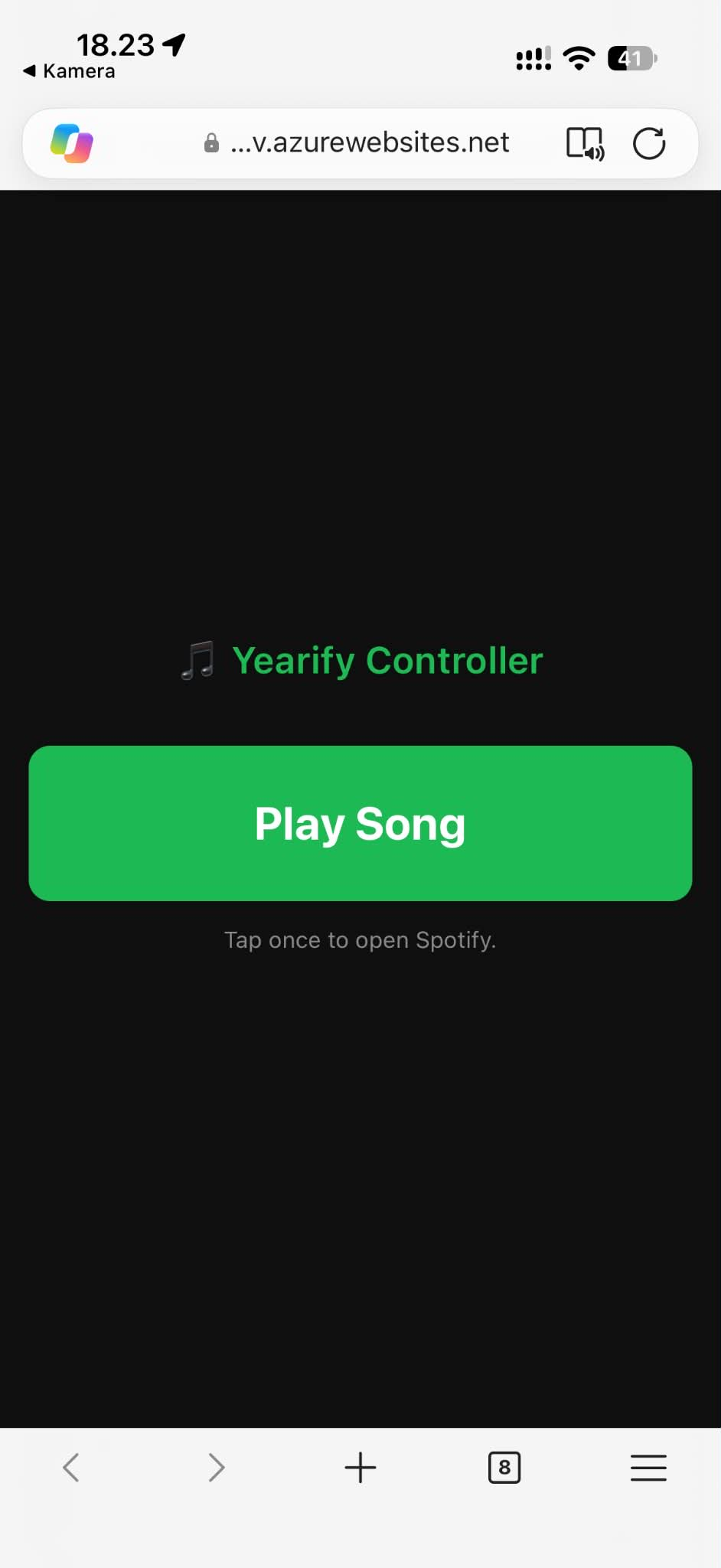
Open the simple controller and tap Play Song once.
Yearify's music-controller QR code opens a simple website with one Play Song button. Keep that browser tab open for later songs. If you need the code again, use Show controller QR code on the PC.
When the active team is ready to listen, tap Play Song once. The website asks the phone to open the Spotify app and play the actual song for the current challenge. The PC remains on the team's timeline; the controller is for playback, not answers.
Both games / Spotify handoff
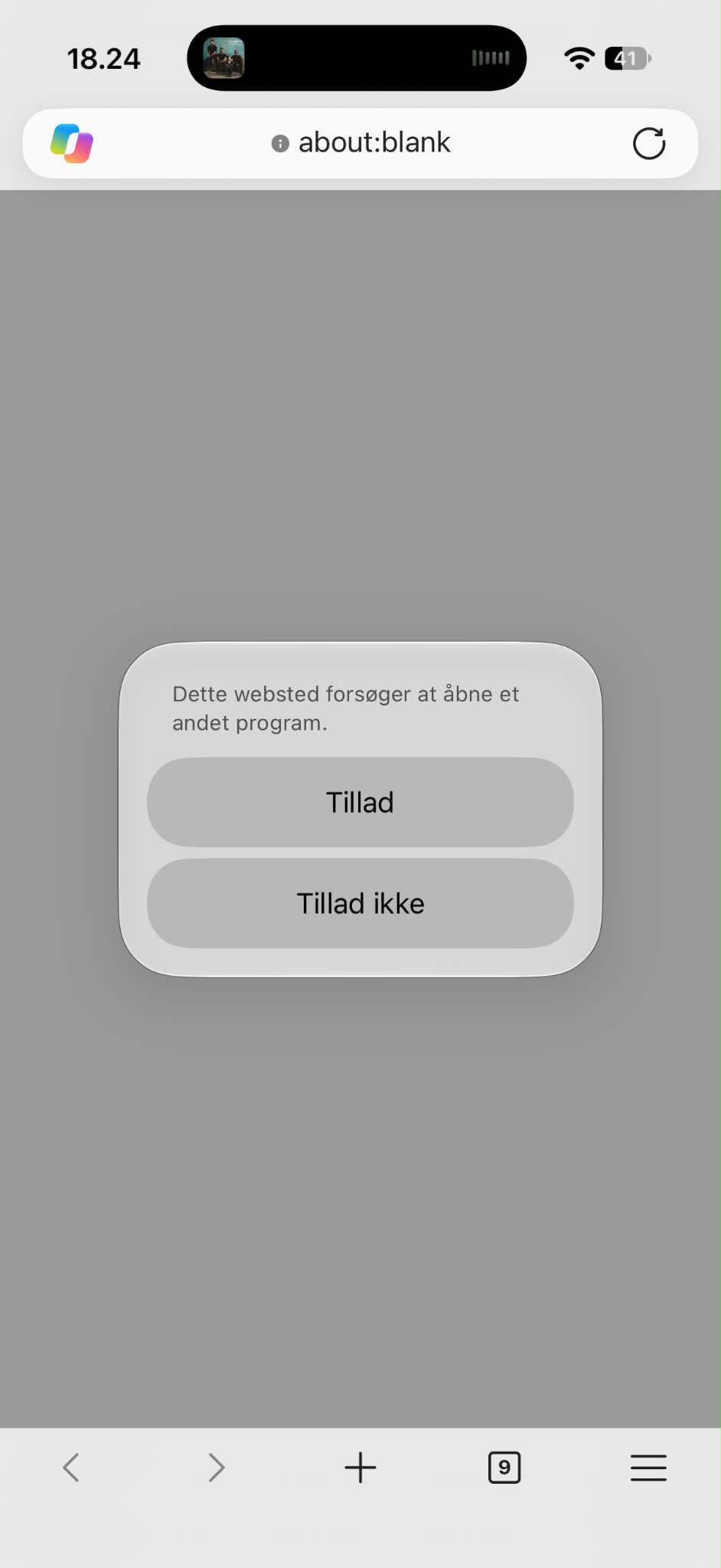
Press Allow, then put the phone face down.
Allow lets the website open another app: Spotify. The Danish screenshot shows Tillad (Allow) and Tillad ikke (Don't allow). Choose Allow / Tillad to open Spotify and play the requested song. A similar prompt can appear when choosing a numbered song in Identify.
Do not inspect Spotify's now-playing screen or show it to the room. The phone operator should avoid seeing the title and artist even if they are not playing: keeping the mystery for everyone makes the game more fun. Leave the phone face down while the team listens and discusses its answer.
Yearify / wait for the answer
The Play Song button is used up for this challenge.
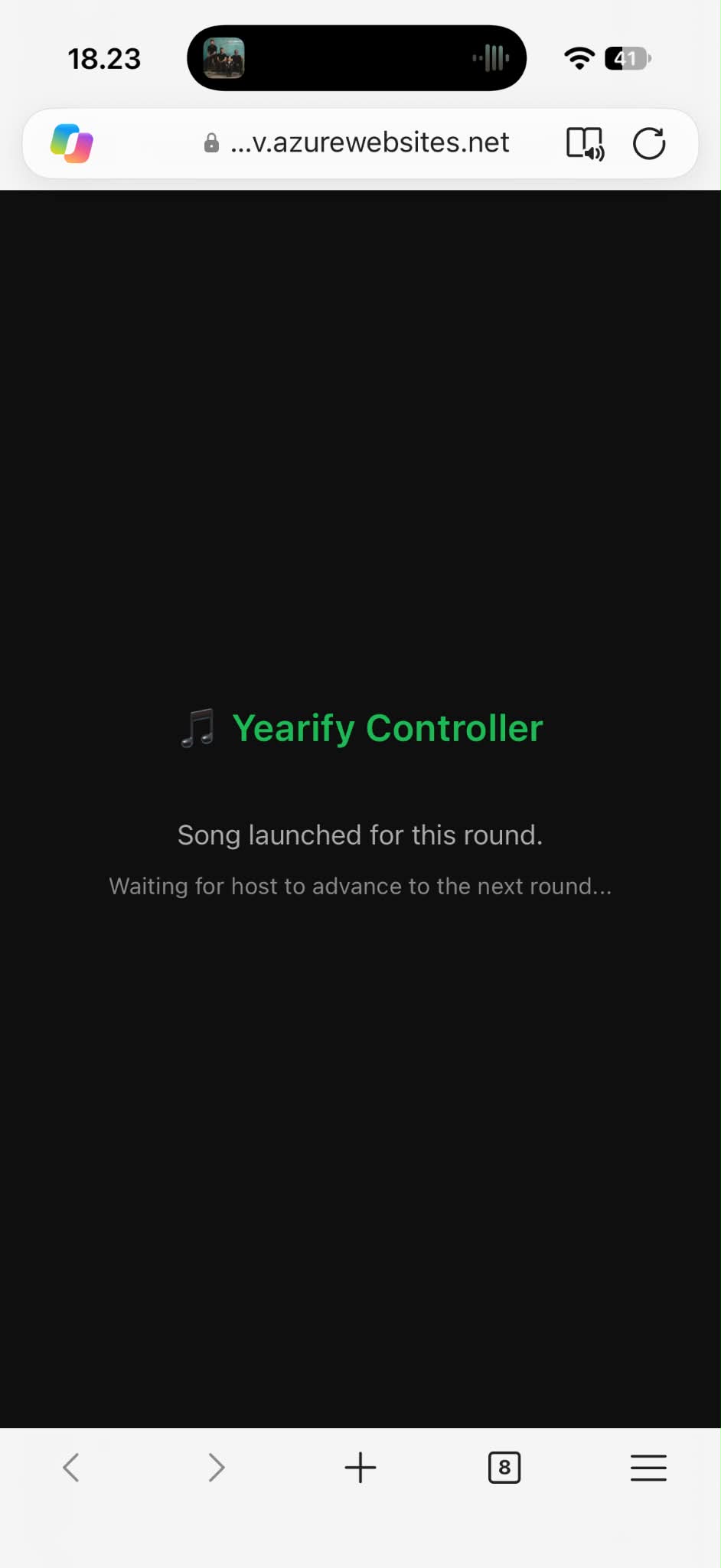
After launching the song, the controller shows Song launched for this round and Waiting for host to advance to the next round. This is normal: the Play Song screen is not available again while the team is still answering. It is not a replay button.
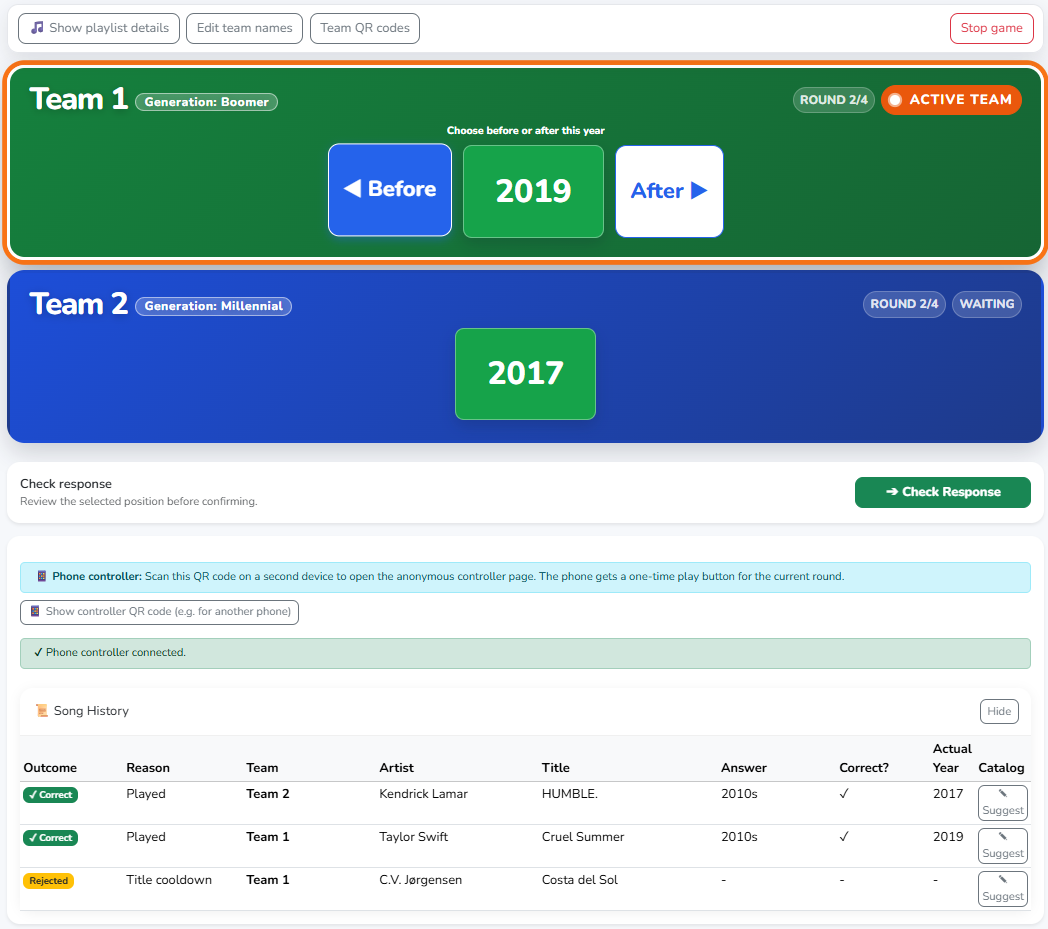
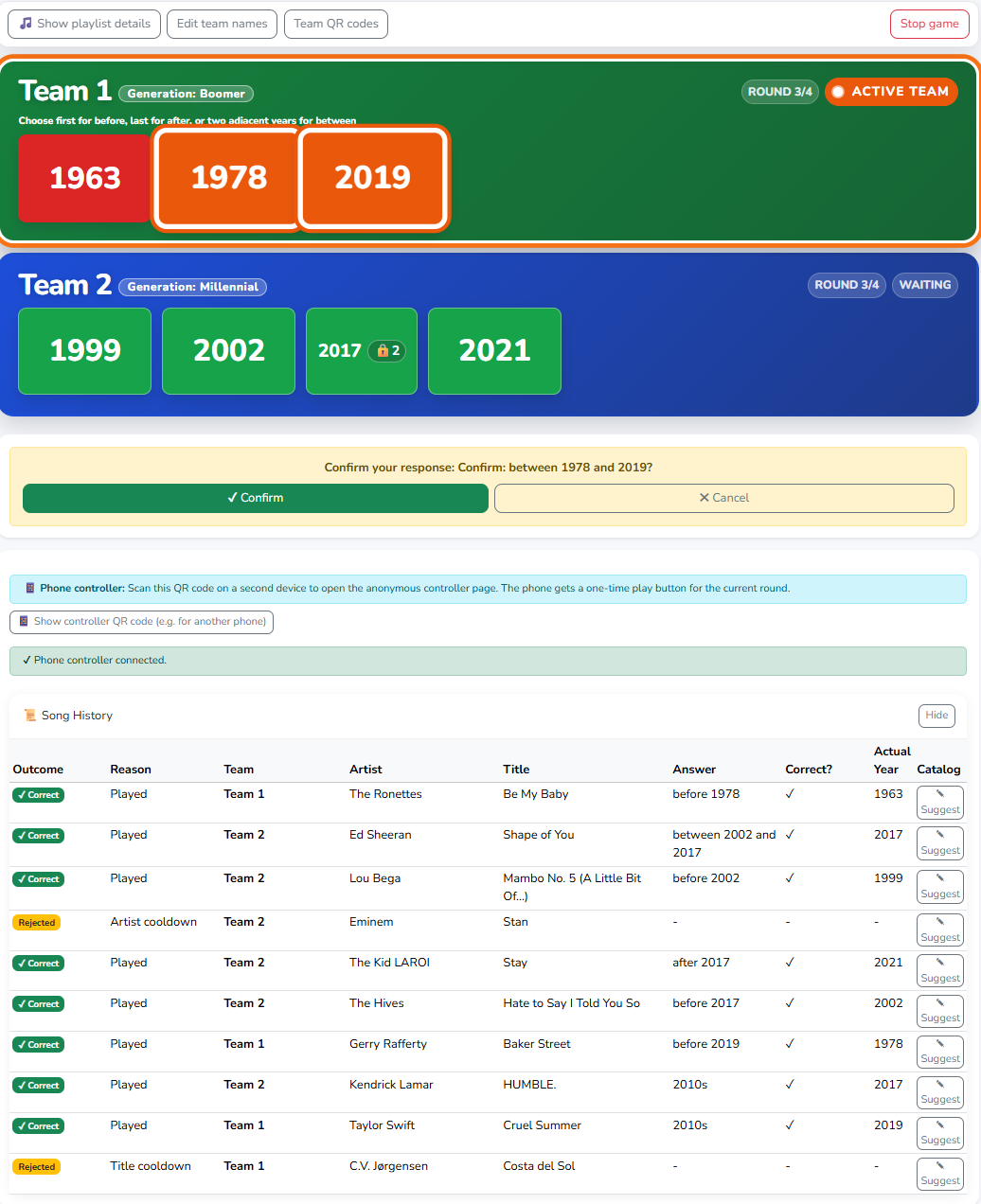
On the PC, the active team chooses its timeline position, selects Check Response, and then Confirm. Only after the team has confirmed its answer and the host advances to a new challenge does Play Song become available again. Confirmation alone does not start the next song.
When the next challenge is ready, return to the original controller browser tab without inspecting Spotify's song details. Tap Play Song, allow the app handoff if asked, and put the phone face down again. Do not reload the page to try to replay the same challenge.
Identify / numbered songs
Tap a number on the phone; match its artist on the PC.
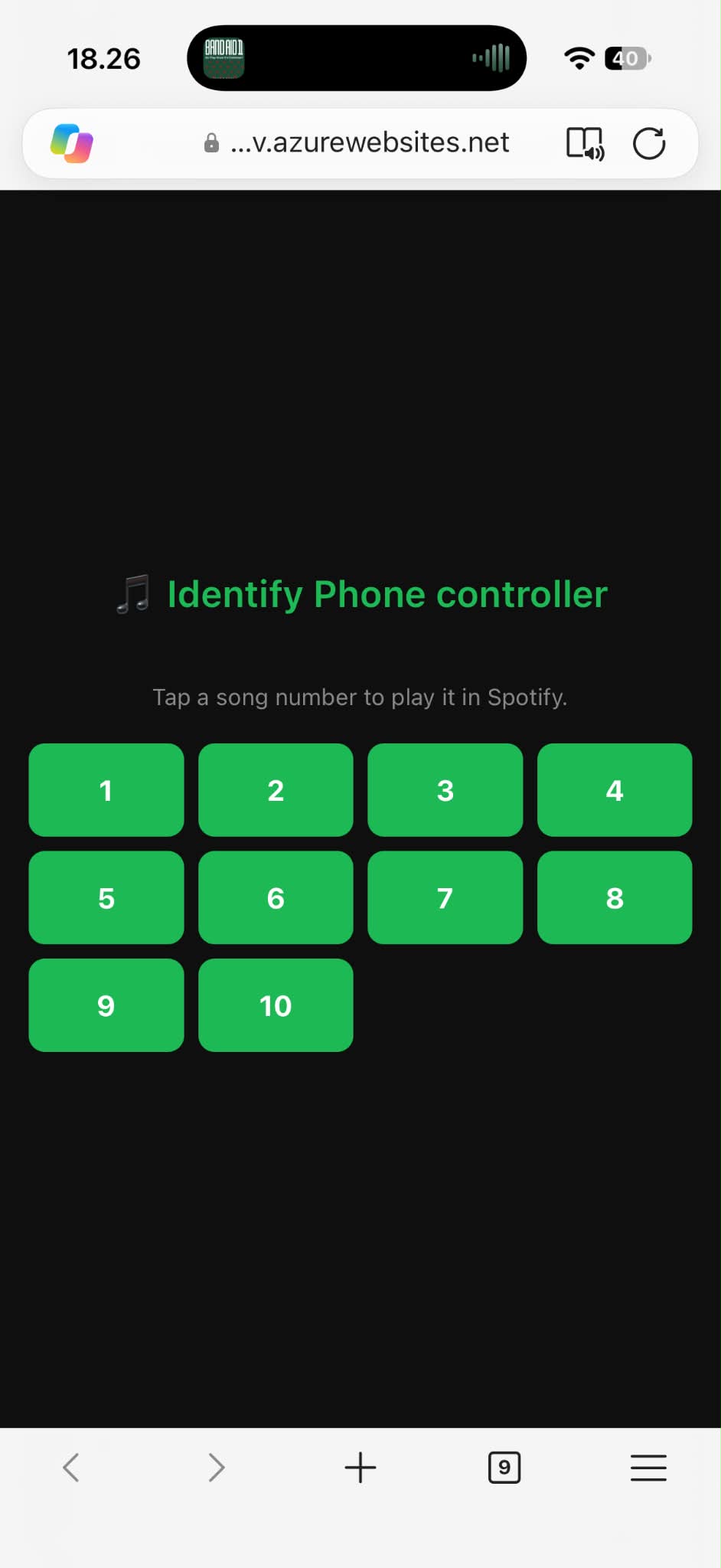
Identify's music-controller QR code opens a website with numbered song buttons: 1 to 10 by default. The number of buttons follows the configured songs per round. Each number plays its corresponding song from the active team's current set in Spotify.
Tap 1, allow the Spotify handoff if asked, and put the phone face down. The team listens, then matches Song 1 to an artist on the PC. Repeat with 2, 3 and the remaining numbers. The phone's numbers and the PC's song rows refer to the same songs.
Return to the controller browser tab to choose another number, without looking at Spotify's artist or title. Unlike Yearify's one-time Play Song button, Identify's numbers let you revisit a song while that set is still being answered. Always hide the screen again after the handoff.
Identify / finish the set
Submit the matches on the PC, then follow the next team.
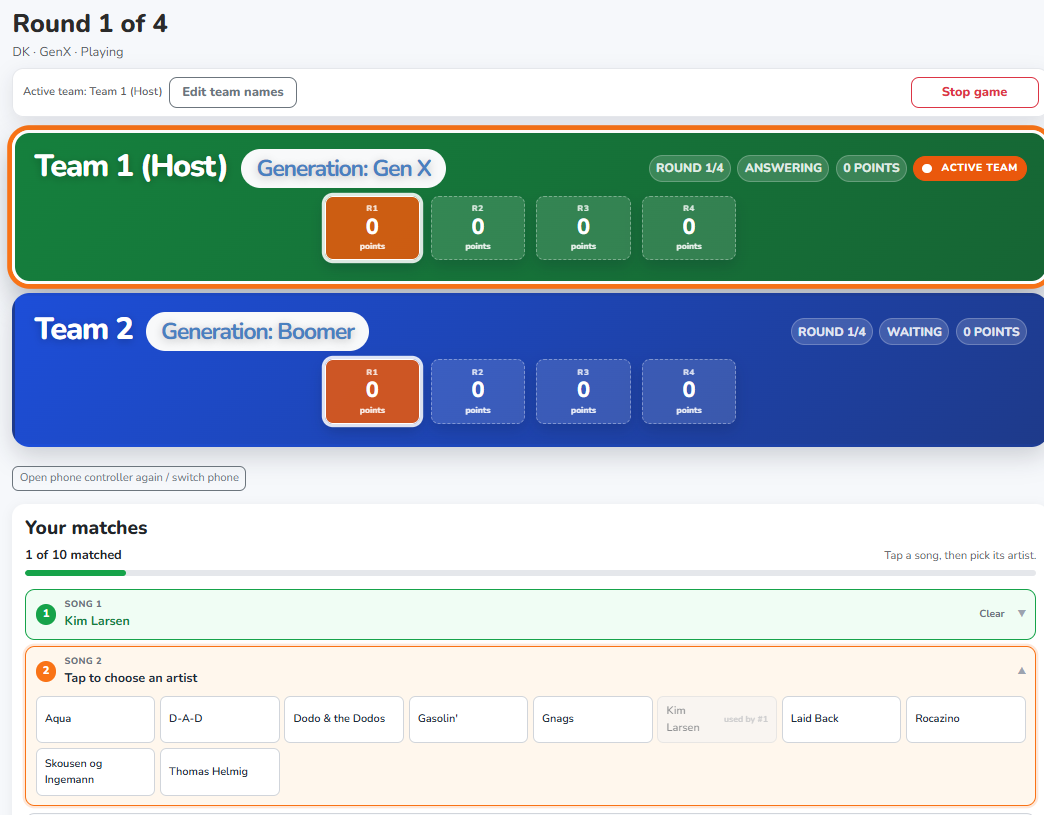
The active team must identify the artists behind all ten songs (or the configured number). In the PC matching panel, select a song row, choose its artist, and review every match. Each artist can be used only once in that set; Clear lets you change a choice.
When every song has an artist, select Submit matches on the PC. The results reveal the titles and correct artists together. The host then continues to the next team or round. The controller's numbers now refer to that active team's songs, not the previous team's set.
Do not confuse playing a number with submitting an answer. Tapping a phone button only launches music; it does not identify the artist or confirm the team's matches.
Both games / when the game ends
The old controller link stops working.
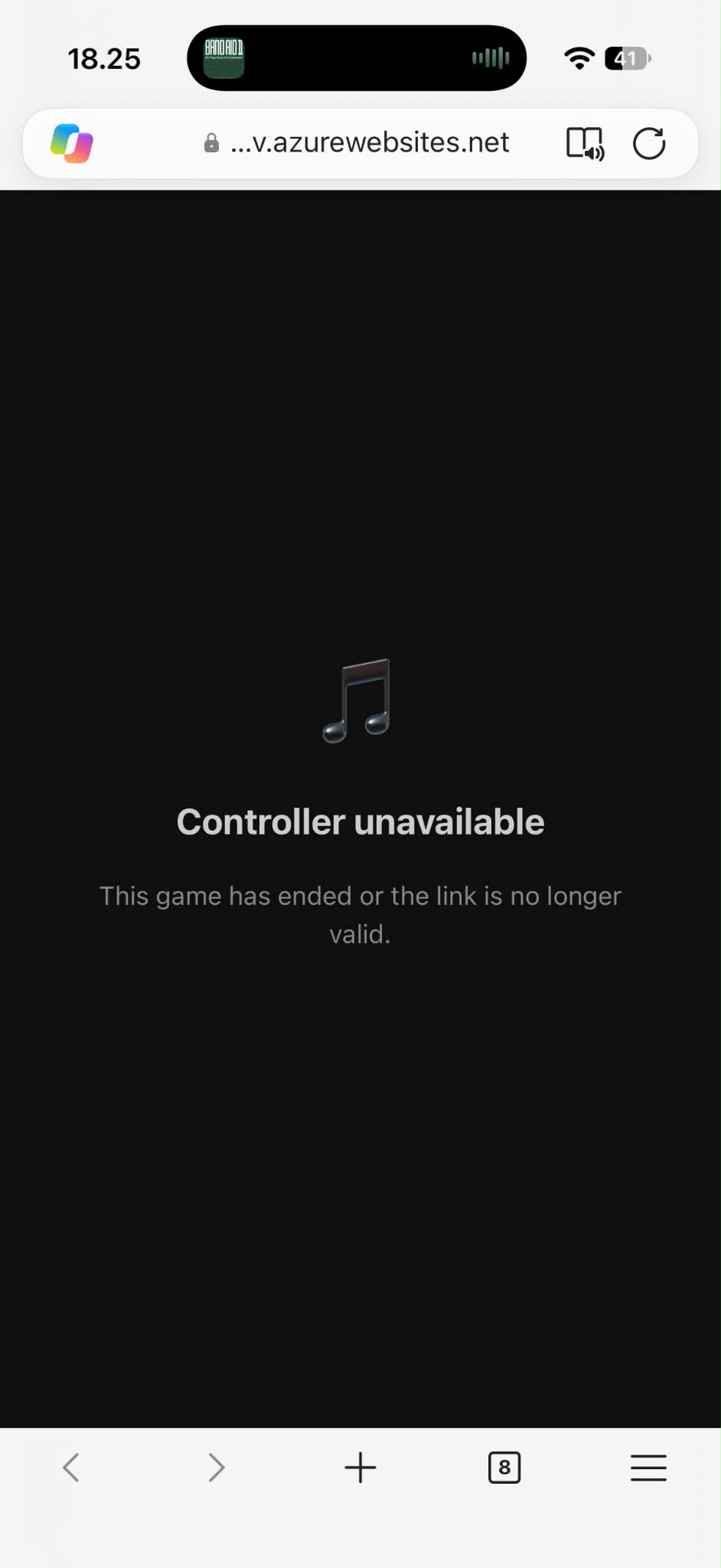
When Yearify or Identify is over, its controller link no longer works. The phone can show Controller unavailable: This game has ended or the link is no longer valid. This is expected, not a Spotify sign-in problem.
For a new game, scan that new game's controller QR code from the PC. An old saved link is not a permanent remote control. Ending the game invalidates the controller; if Spotify is still playing, use Spotify's normal controls to stop the music.
If something does not play
Check the handoff, not the team's answer.
If you chose Don't allow / Tillad ikke, the browser did not open Spotify. Yearify still treats the launch as used for that challenge; its waiting screen is not evidence that audio actually started. Do not confirm an answer just to unlock another song. Tell the host before answering; if the launch cannot be recovered without revealing the song, stop and start a new game, then scan its new controller code.
If Spotify opens but there is no sound, check the phone volume, selected audio output and speaker connection using your usual Spotify knowledge. Do not show the song details to the team while troubleshooting.
If Yearify shows the waiting screen, let the team confirm on the PC and the host advance normally. If the controller is unavailable during what you thought was a live game, check the host's PC and scan the current game's controller code. The phone needs a network connection to reach the game website.
Yearify / listen, place, decide
Where does this song belong?
Start with a song, then build the timeline. Each team places the track in time, decides when to lock in, and argues over the memory as the years stack up.
Make it your own
Choose a generation and decade mix for every team.
Choose Phone controller for playback in Game settings, set the number of teams and rounds, and save. The host plays music from their Spotify app on a phone; the PC stays open for the game board and answers. Title and artist cooldowns are preconfigured to reduce repeats and can be adjusted in settings.
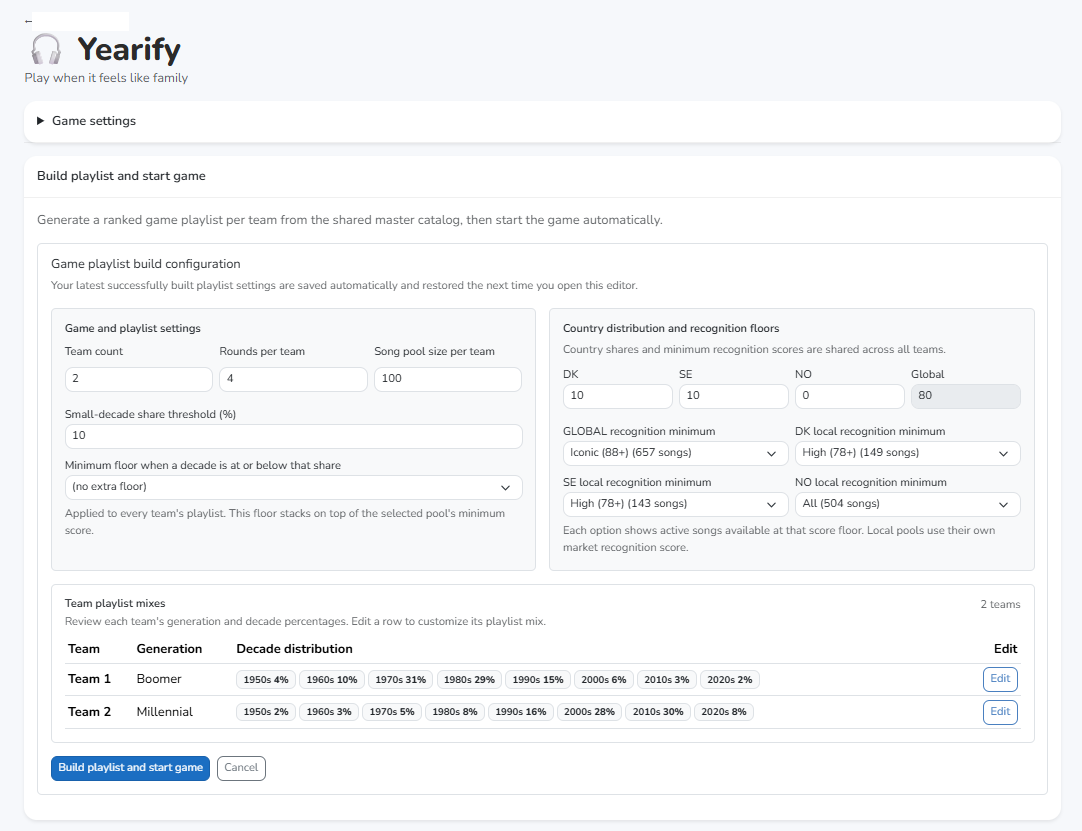
Open Build playlist and start game, then Configure playlist and start game. Each team gets its own row. Edit a team to choose its generation preset (for example, Boomer or Gen X) and review or customize the percentage from each decade. Decade shares must add up to 100%.
Choose the recognition floor to set the feel: All allows the widest mix, including Niche songs (the most challenging); raising the floor to Moderate or High favors increasingly familiar tracks; Iconic is the easiest, most familiar end. The shared pool contains more than 4,500 songs. Preconfigured title and artist cooldown windows keep recently used songs and artists out of new playlists for a while, so repeats are less likely.
Know your playlist
Build 100 songs per team, then explore the mix.
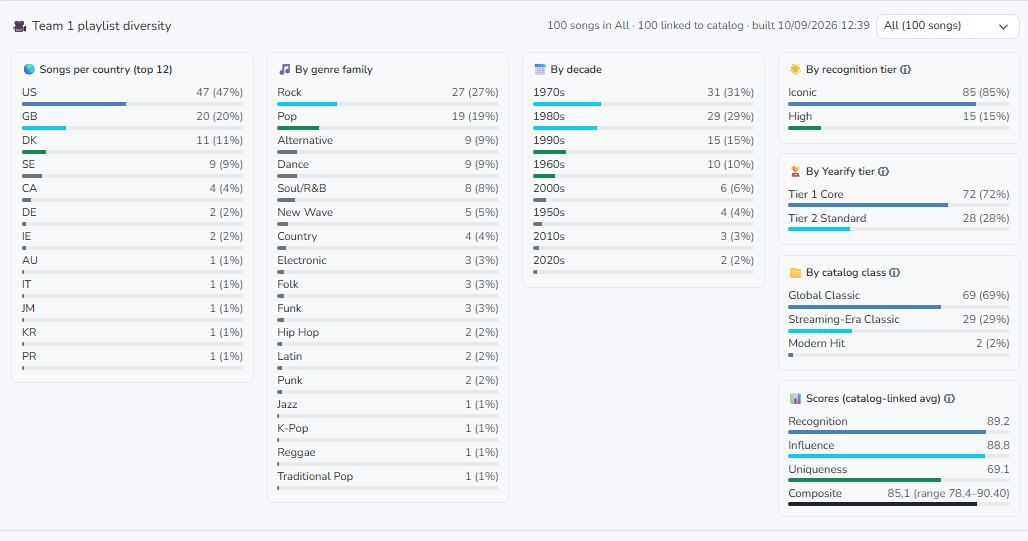
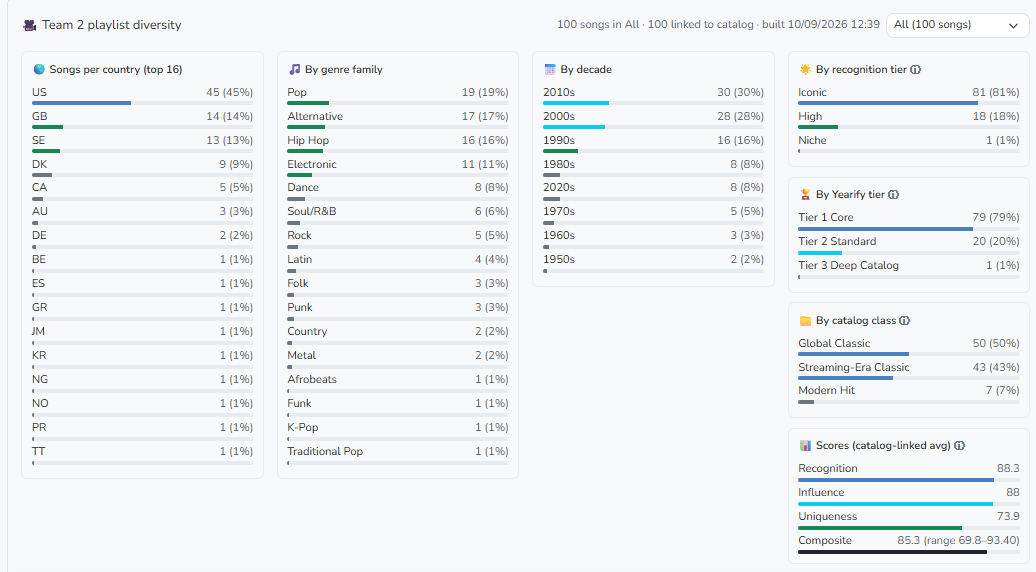
The default is a 100-song playlist per team. Build playlist and start game creates the team playlists and starts the game. The generation changes which decades are emphasized; country shares and recognition floors also shape what gets selected.
During play, use Show playlist details to inspect the generated distribution by country, decade, genre, recognition tier and score. You can see how the team generations shaped the playlists. The examples show the kind of mix to expect, not the answer to the next song.
Listen first
Start the phone controller and place the first song.
After the game starts, find the phone-controller QR code below the team list on the PC. Scan it with the phone that has the host's Spotify app. Tap Play Song once to launch the mystery track, then put the phone face down so nobody sees its title or artist.
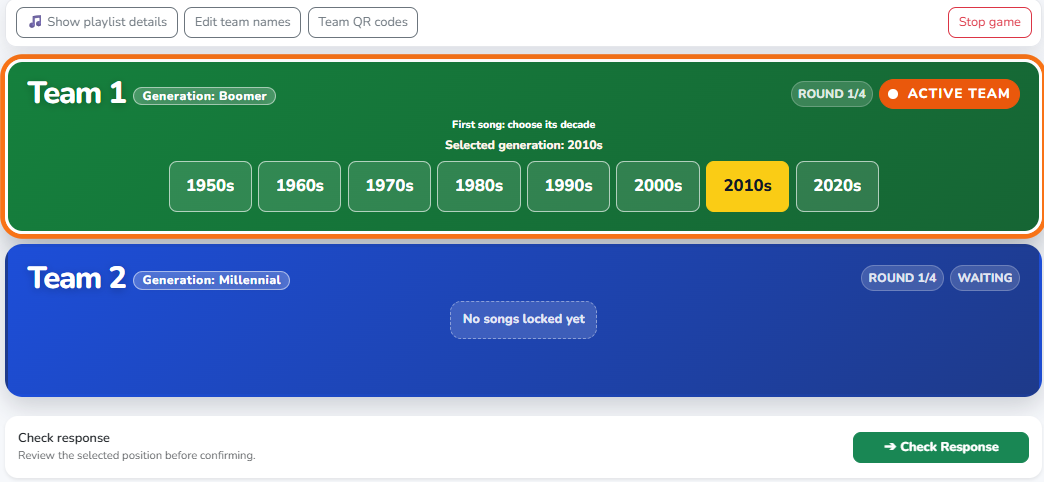
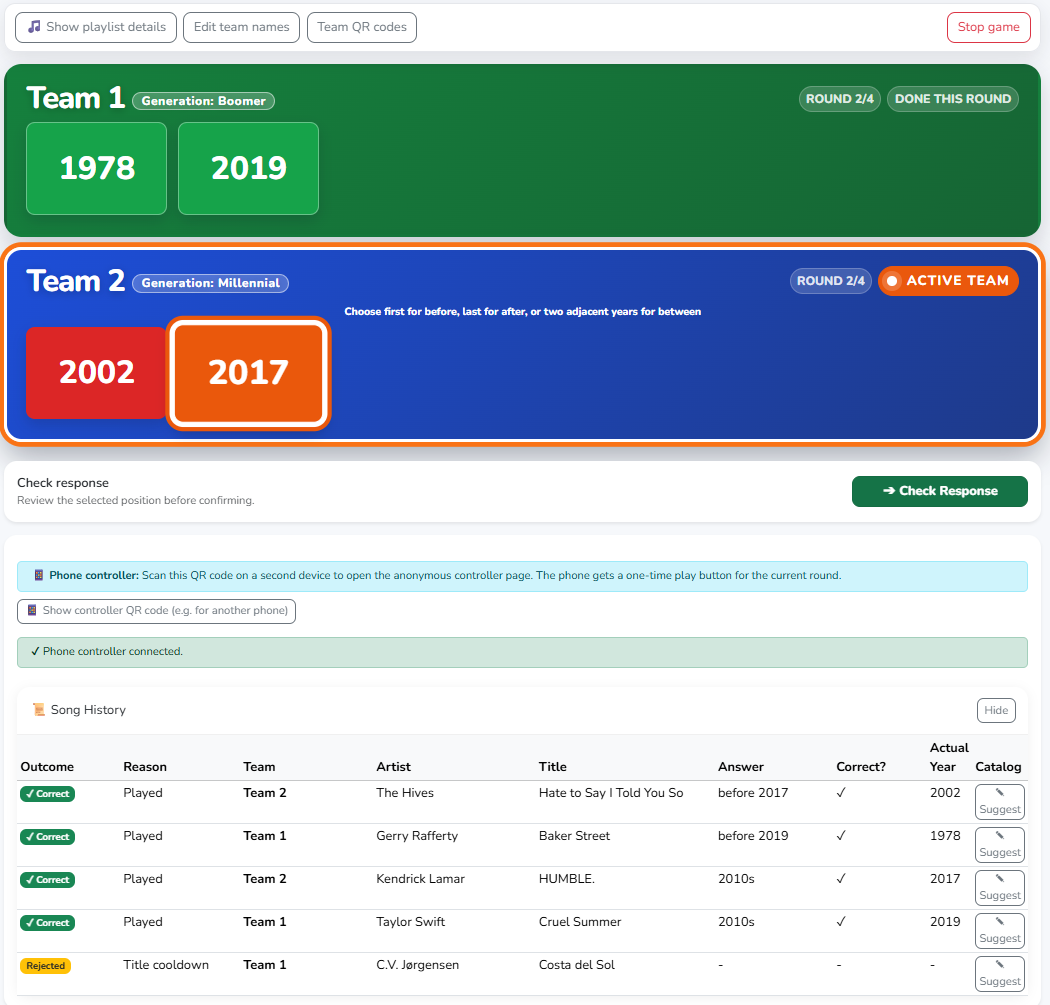
For the first song, choose the decade you think it belongs to. If the guess is wrong, the turn passes to the next team. When years are already on the timeline, place the song before the first year, between two neighboring years, or after the last year.
Protect the reveal
Allow Spotify, then hide the phone screen.
If the phone asks permission to open Spotify, choose Allow. The Danish prompt says Tillad (Allow); Tillad ikke means Don't allow. This is the same app handoff for Yearify and Identify.
After Spotify opens, keep its now-playing screen out of sight. Put the phone on the table screen down so nobody, including the phone operator, sees the artist or song before the answer. This keeps the mystery for the whole room.
Confirm before the next song
Yearify waits until the host advances.
After launching a song, the phone controller says Song launched for this round and Waiting for host to advance to the next round. The Play Song button is not available again while the team answers; it is not a replay button.
On the PC, Check Response opens a confirmation step. Confirm the placement to reveal the result; the host then chooses whether to continue, lock the team's unlocked years, or advance. Only when the next challenge is ready will the phone controller offer Play Song again. Return to the original controller browser tab, keep it face down, and do not reload to replay the same challenge.
Your first reveal
Meet the song behind the answer.
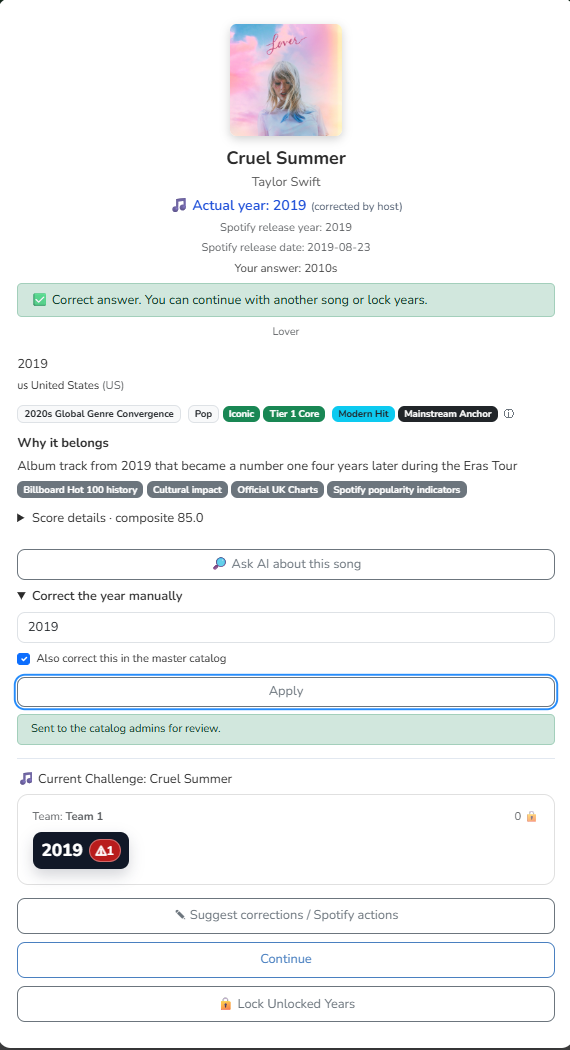
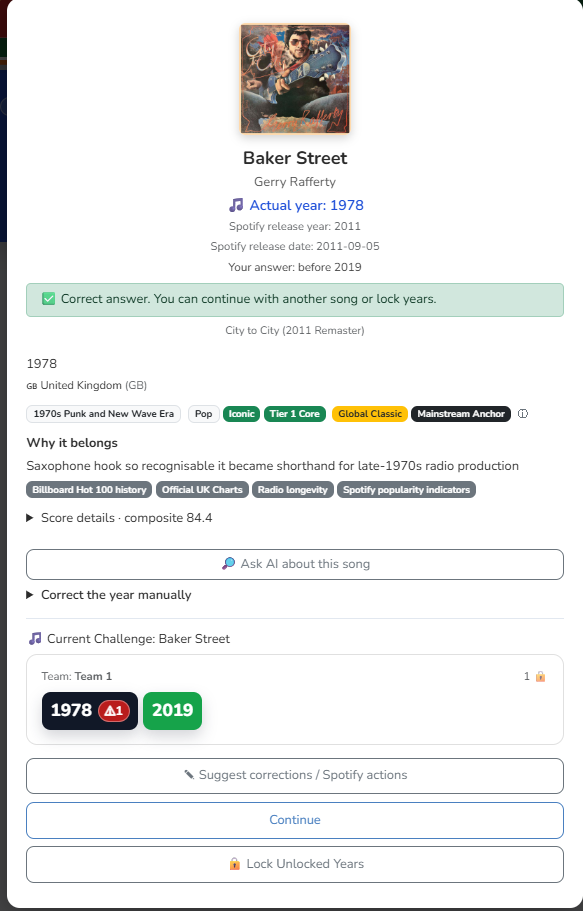
The game checks the placement against the song's original release year and shows the result. You can see examples of songs and placements as you play; a familiar song can still be surprisingly hard to place precisely.
A correct answer adds the actual year to the timeline as unlocked and at risk. You can Continue with another song or Lock Unlocked Years to bank your correct answers and pass the turn.
Bank it or risk it
How long will your team keep guessing?
Each correct song makes the timeline more crowded and the next placement trickier. Continue to try for more songs, or decide when to stop and Lock Unlocked Years. Locked years are safe and the turn passes to the next team.
One wrong placement ends the team's run and forfeits the unlocked years from that run; only locked years are protected. At the end of the configured rounds, the team with the most locked songs wins. Choose carefully: the more you risk, the more you can win. And yes, it is fun even when the familiar song proves harder to place than expected.
When the year looks odd
Check the original release, not just the Spotify date.
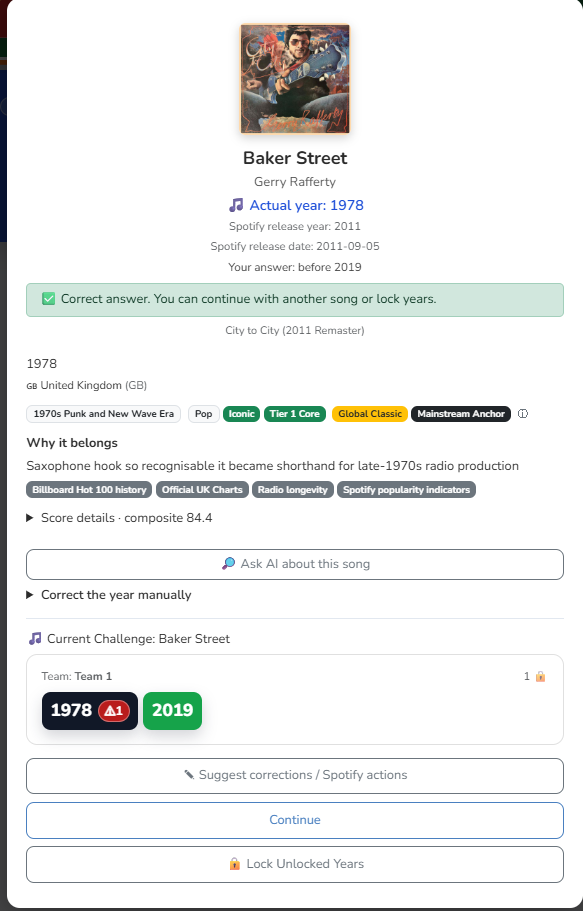
A reissue can have a newer Spotify release date than the song's original year. Yearify shows both, so a 2017 edition of a song can still belong in 1997.
Use Ask AI about this song or Correct the year manually to review a disputed year before moving on. Suggest corrections / Spotify actions is for proposing catalog or track fixes. Review the evidence rather than treating an AI response as the final authority.
Identify / listen, match, reveal
You know the song. Can you name the artist?
Play the song, match it to the artist, and reveal the round. Fast, social, and built around team memory rather than individual bragging rights.
Set the scene
Choose the challenge and each team's generation.
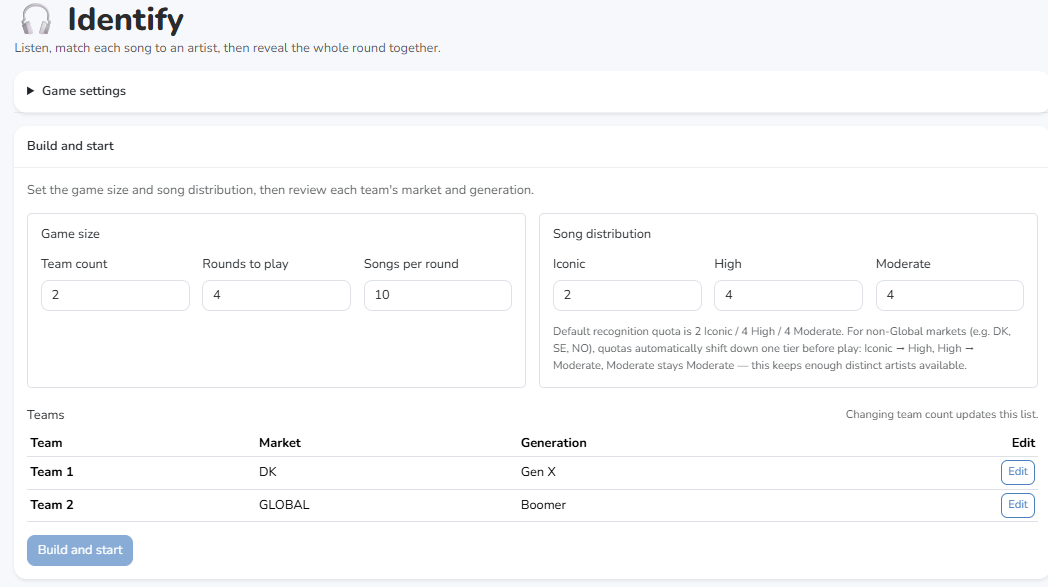
Choose Phone controller for playback, the number of teams and rounds, and ten songs per round. Set how many Iconic songs to include. More Iconic songs make the round easier; fewer Iconic songs and more High or Moderate songs make it more challenging. Iconic, High and Moderate counts should add up to ten.
Edit each team to choose its generation and market. Teams can have different musical profiles. Local-market recognition quotas may shift down a band, as the setup screen explains.
When the setup looks right, choose Build and start to generate the songs and launch the game.
One song at a time
Open the phone controller and play by number.
After the game starts, scan the music-controller QR code on the PC. The phone controller lists buttons 1 to 10 by default, matching the numbered song rows on the PC. Tap a number to launch that song in Spotify.
You can tap the same number again to replay that song while the round is active. Unlike Yearify, Identify's numbered controller lets you replay songs as often as you need.
The phone controls playback; use the PC to enter answers and follow the game. Keep the controller tab open for the next song.
Protect the reveal
Allow Spotify, then hide the phone.
If asked, press Allow (Tillad) so the browser can open Spotify. Tillad ikke means Don't allow.
Once Spotify opens, turn the phone face down. Keep the title and artist hidden from the team; sharing the mystery is part of the fun.
Match the artists
Match all ten songs with the ten artists.
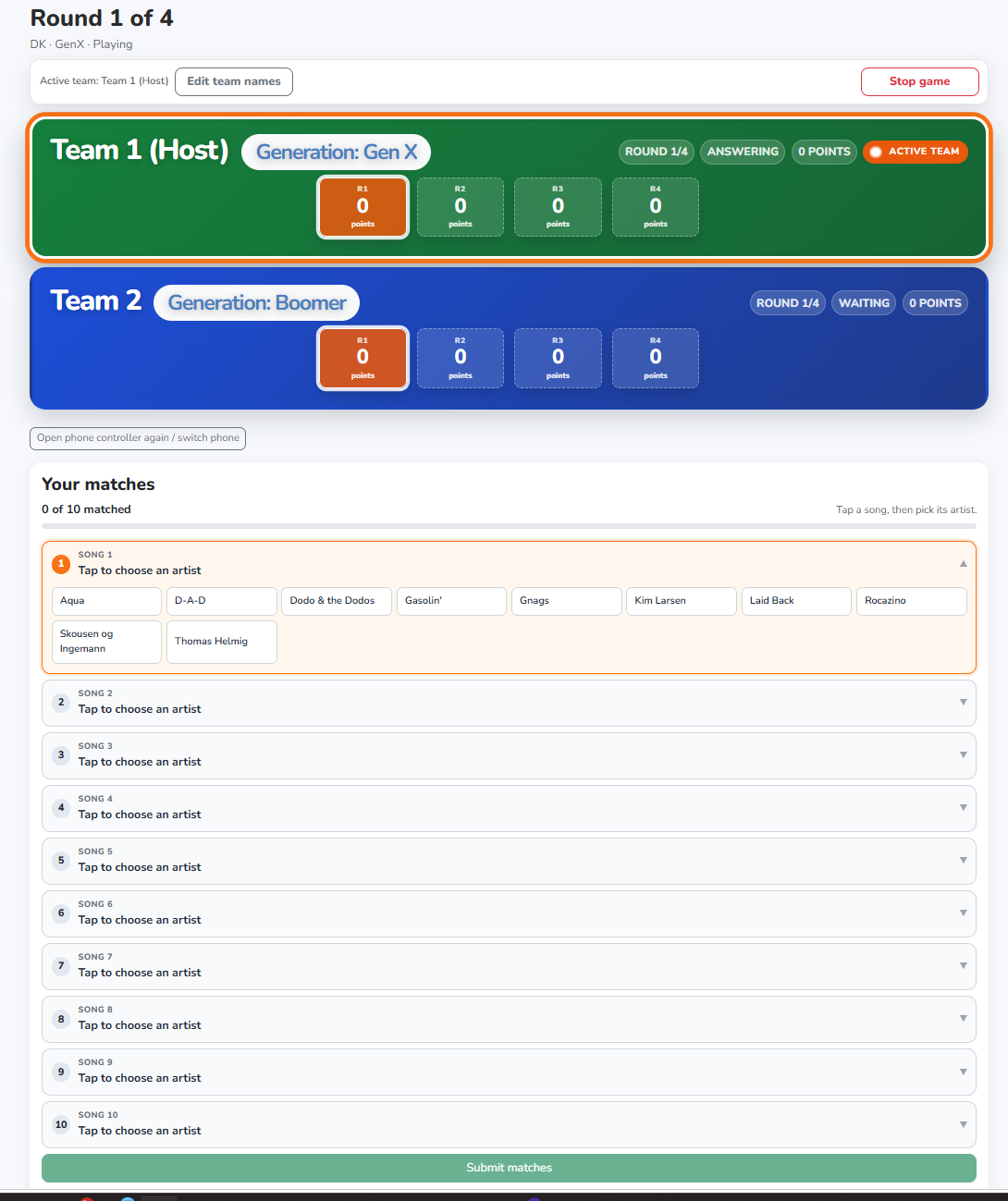
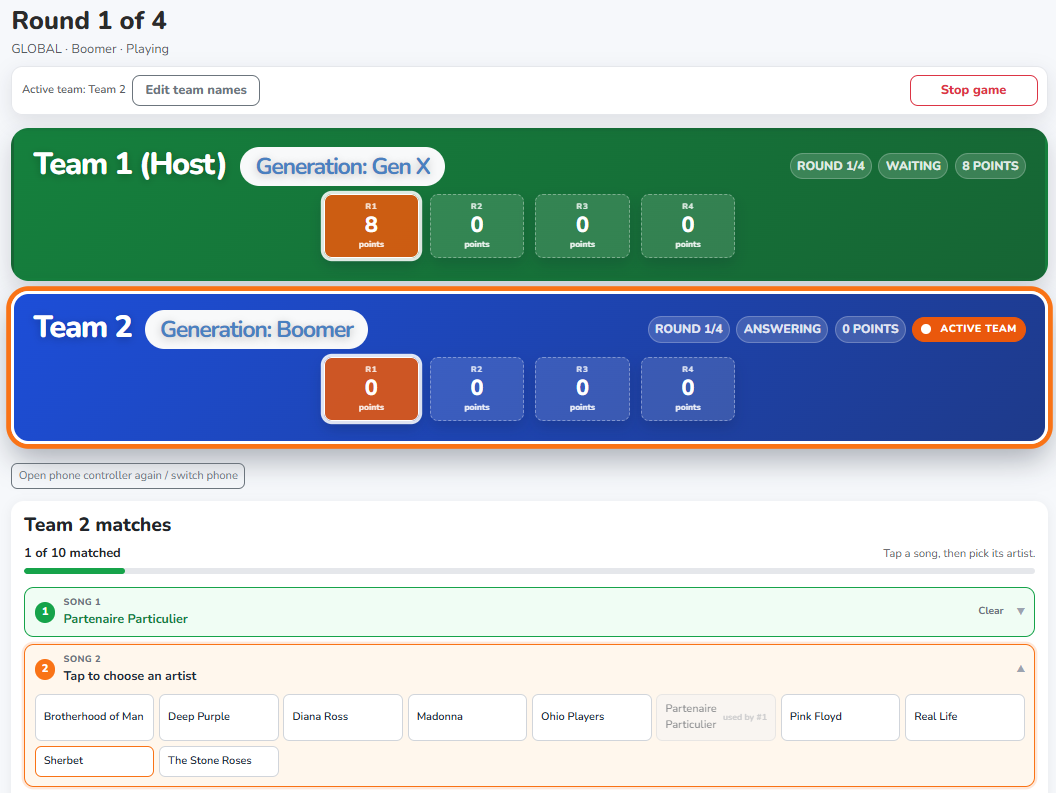
On the PC, open a song row and choose the artist you think you heard. Each artist can be assigned only once, and Clear lets you change a match.
The matched counter shows how many answers are filled in, not how many are correct. Familiar songs can still make surprisingly tricky choices.
Submit your responses
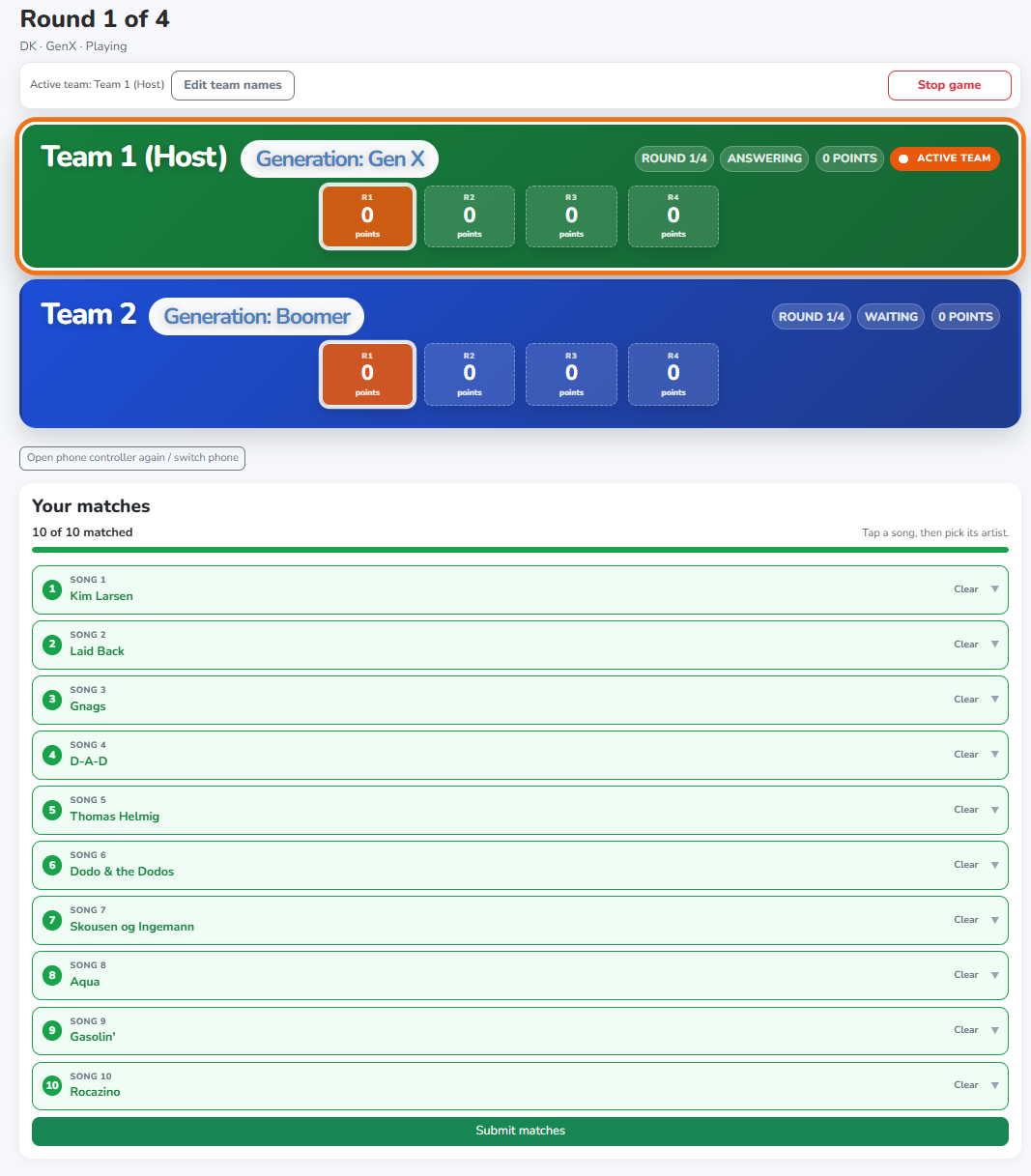
Review the ten matches, then submit.
When all ten songs have an artist, review your choices and select Submit matches. Confirm in the dialog to reveal the results.
The reveal
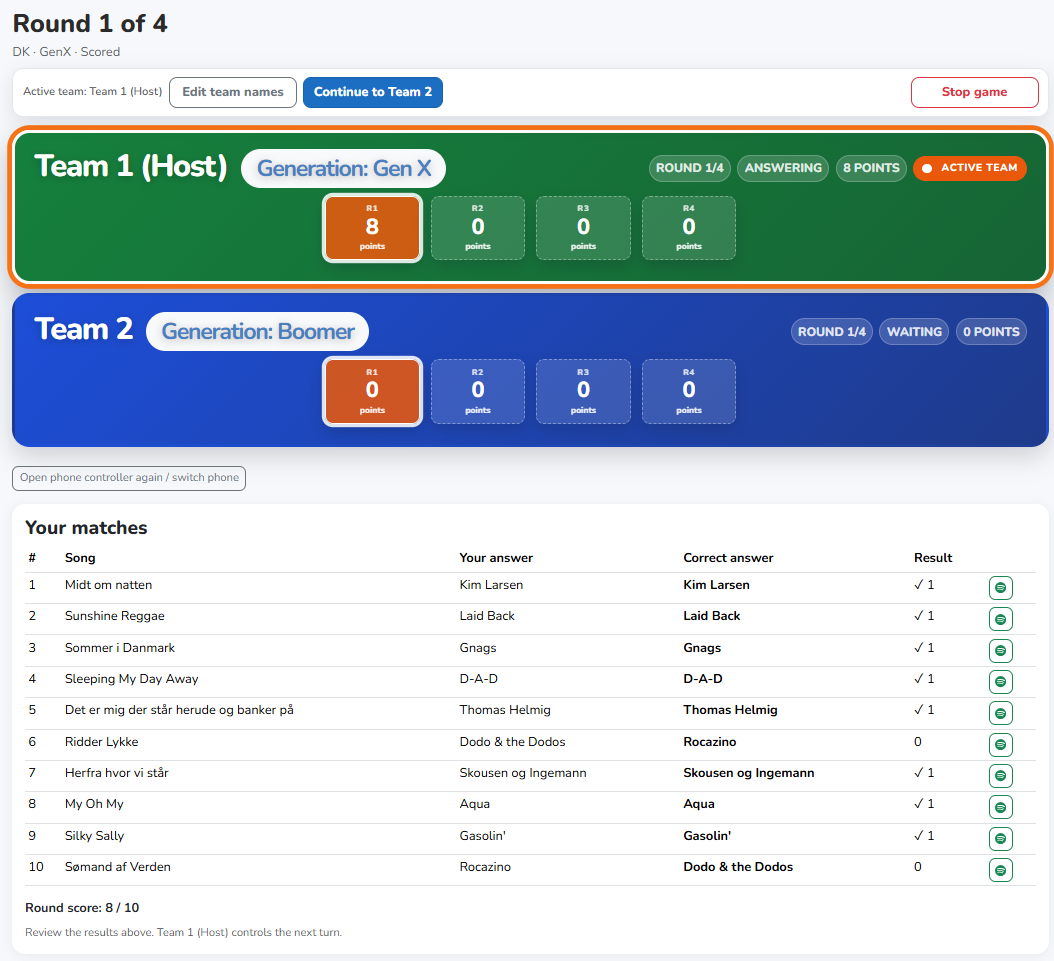
See every answer and the round score together.
The results show each song, your chosen artist, the correct artist, and the points earned. Each correct match earns one point; the example scores eight out of ten.
Review the answers together, then the host continues to the next team or round. It is not as easy as it looks.
Pass the music on
Give the next team its own turn.
The PC scoreboard shows the active team and each team's round scores. Use the same phone controller to play the next team's numbered songs; their answers and progress appear on the PC. At the end, total points decide the winner; a tie is possible.
When a game ends, its controller link stops working. Scan the new game's music-controller QR code from the PC for a fresh link; an old link is not a permanent remote control.
Quizify / clue, recall, surprise
Can your team remember the song and the story behind it?
The song starts the round. Then the game turns into a live AI-powered question chain: clues, facts, answers, and a few sly curveballs tailored to the team’s generation, country and language.
Set the scene
Choose the challenge and each team's generation.
Choose Phone controller for playback, set the number of teams and rounds, and review the question mix. Quizify starts with a song-based prompt, then keeps generating follow-up clues based on the music and the team's chosen generation and country.
Some questions are easy, some are tough, and some are designed to trip up the overconfident. When a clue feels too difficult, the team can ask for three answer options. Answering without help still earns the most points, so risk and reward stay in the game.
Start the song from the controller
Open the phone controller and launch the clue when the round is ready.
Once the game is live, scan the controller QR code from the host PC. The controller launches the current song from Spotify and keeps the room focused on the clue, not on the artist or title. Tap the song launch when the host is ready, then put the phone face down so nobody sees the title or artist.
This is where Quizify differs from a standard one-question trivia round: the music question is the start of a longer, AI-generated chain. The host sees the fun fact only after remote playback begins, and the answer buttons appear only when the track is actually live and the room is ready.
Protect the reveal
Allow Spotify, then keep the phone hidden.
If the browser asks to open Spotify, choose Allow. Once Spotify opens, turn the phone face down so the team still sees only the challenge, not the answer. Keep the song secret until the team is ready to answer.
This mirrors the Yearify and Identify flow: the host uses the phone's Spotify app, while the PC stays focused on the round and team score.
Answer the clue
Read the clue, then reveal the answer and the story.
Once the remote song has started, the fun fact appears and the host can submit the answer. The current prompt might be a song title, artist clue, release-year question, or a connection prompt that links the song to a wider idea or category.
After the team answers, the result reveals the correct response, the points awarded, and the connection or story behind the song. If the team asks for help, it can request three answer options, but a no-help answer earns the biggest reward.
Pass the round along
Move to the next question or next team without breaking the rhythm.
When the current question is complete, the next clue or next team becomes active. The controller still belongs to the current game, and the host keeps the phone for the next launch. If the game ends, that controller link stops working and a new QR code is required for the next game.
The pace is intentionally quick: music question, clue, answer, reveal, then the next question in the chain.
The music behind all three games
One shared catalog. Different mixes for different teams.
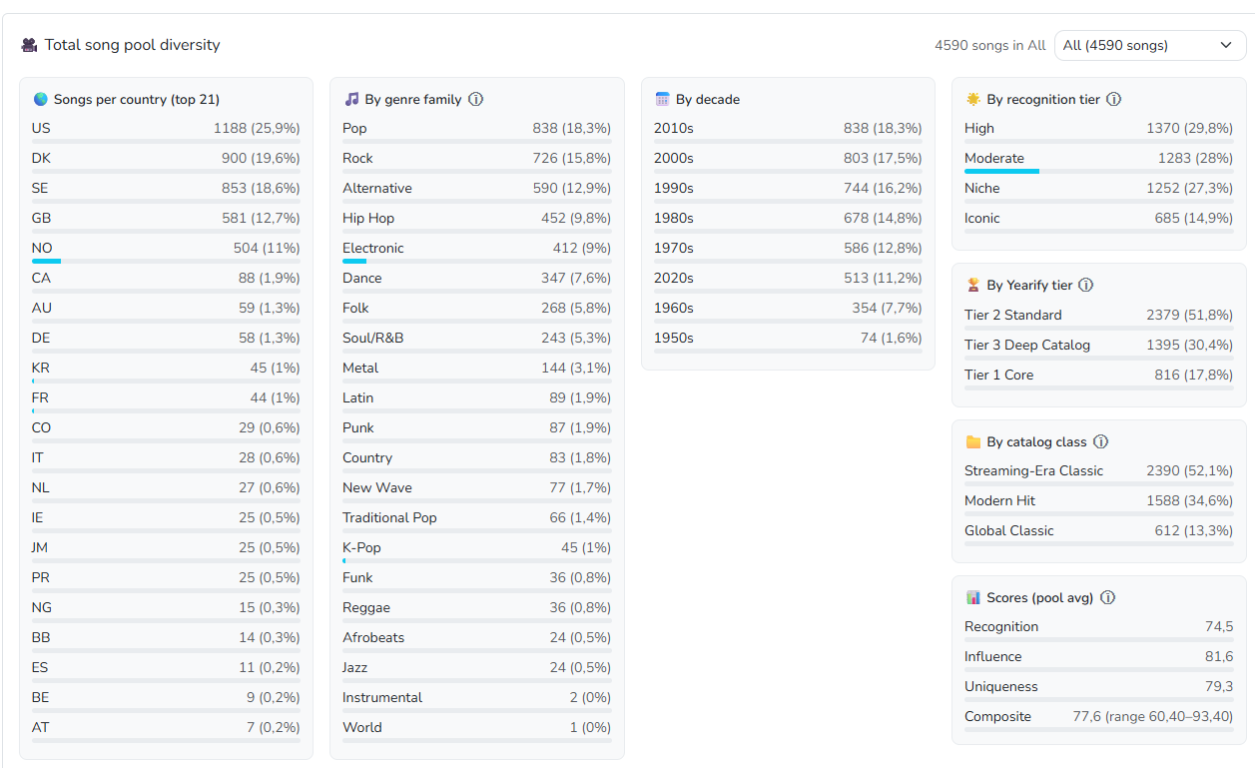
All three games draw from the same shared music catalog. Decades, genres, recognition bands, and markets shape the mix. The playlist diversity view helps explain the music you actually received, and it is not itself a scorecard.
See a market-pool example
Song Pool management is for global admins. This screenshot explains where the music comes from; access to this guide does not grant catalog-management permissions. The pool selector changes the statistics shown, not the rules of a running game.